


写在最前
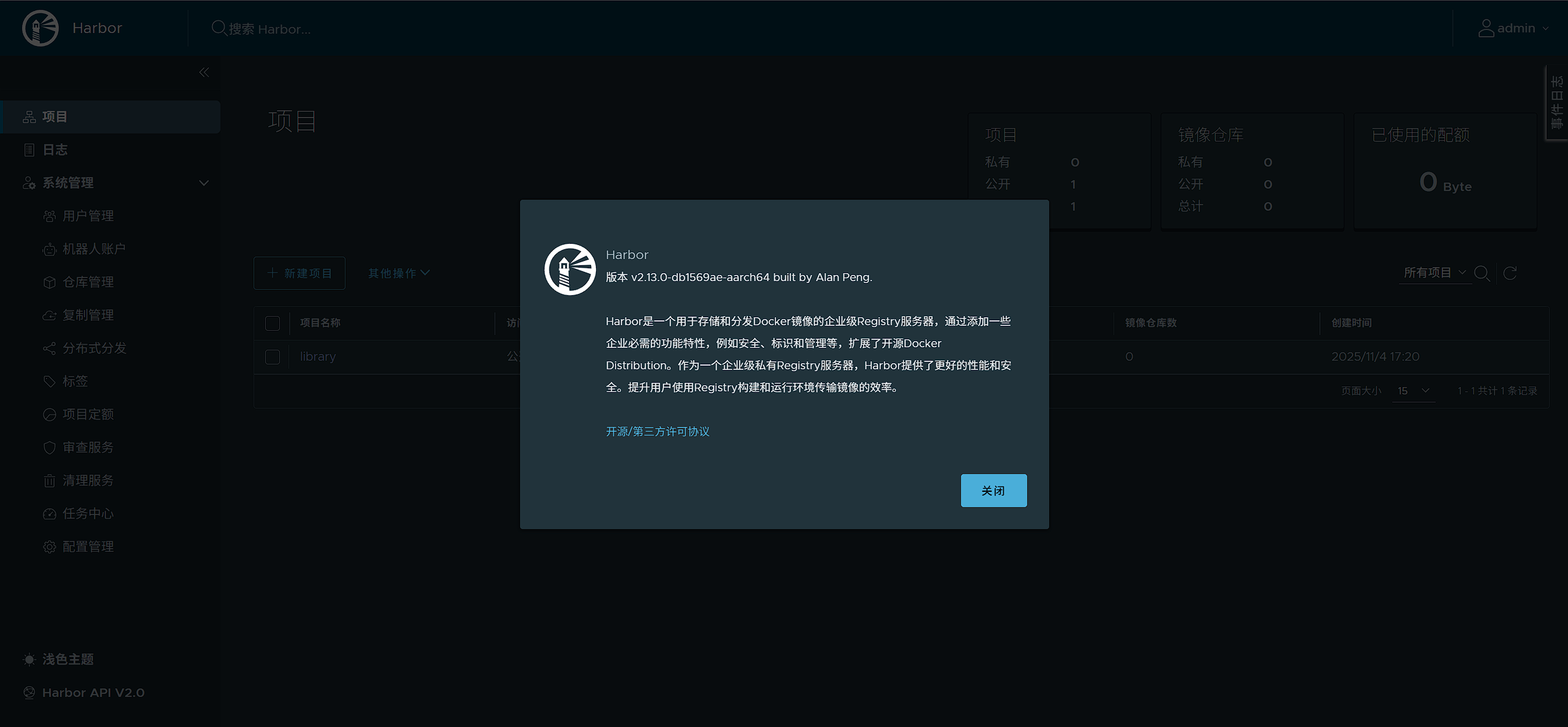
在 ARM 环境中部署 Harbor 的确有些复杂,但幸运的是,GitHub 上有一些大佬提供了预编译的 Harbor 版本安装包,能够大大简化我们的部署过程。本篇文章将使用 wise2c-devops 大佬提供的编译结果来完成 Harbor 的安装,从而省去编译过程,直接实现快速部署。
不推荐将 Harbor 部署在 Kubernetes 中,因为如果某个节点故障且未快速恢复,可能会破坏 Harbor 组件的完整性,导致拉取异常或死循环。将 Harbor 部署在独立节点上更为稳妥,能确保更好的稳定性。
https://github.com/wise2c-devops/build-harbor-aarch64?tab=readme-ov-file
前置条件
1. docker 部署
自行部署docker与docker-compose选择版本wget下载即可
https://github.com/wise2c-devops/build-harbor-aarch64/releases/tag/v2.13.0
在登录页面输入默认的用户名和密码:
用户名:
admin密码:
Harbor12345
# 下载到服务器
wget https://github.com/wise2c-devops/build-harbor-aarch64/releases/download/v2.13.0/harbor-offline-installer-aarch64-v2.13.0.tgz

# 解压
tar -xf harbor-offline-installer-aarch64-v2.13.0.tgz

# 复制配置文件
cd harbor
cp harbor.yml.tmpl harbor.yml

# 编辑harbor.yaml

# 安装!
./install.sh
[root@iZj6c0tl20kby7y2kezmk0Z harbor]# ./install.sh

[Step 0]: checking if docker is installed ...

Note: docker version: 26.1.4

[Step 1]: checking docker-compose is installed ...

Note: Docker Compose version v2.27.1

[Step 2]: loading Harbor images ...
Loaded image: goharbor/redis-photon:v2.13.0-aarch64
Loaded image: goharbor/harbor-redis-base:v2.13.0-aarch64
Loaded image: goharbor/trivy-adapter-photon:v2.13.0-aarch64
Loaded image: goharbor/harbor-trivy-adapter-base:v2.13.0-aarch64
Loaded image: goharbor/registry-photon:v2.13.0-aarch64
Loaded image: goharbor/harbor-jobservice-base:v2.13.0-aarch64
Loaded image: goharbor/harbor-core-base:v2.13.0-aarch64
Loaded image: goharbor/harbor-exporter-base:v2.13.0-aarch64
Loaded image: goharbor/harbor-registry-base:v2.13.0-aarch64
Loaded image: goharbor/harbor-nginx-base:v2.13.0-aarch64
Loaded image: goharbor/harbor-log-base:v2.13.0-aarch64
Loaded image: goharbor/harbor-portal:v2.13.0-aarch64
Loaded image: goharbor/harbor-portal-base:v2.13.0-aarch64
Loaded image: goharbor/harbor-db-base:v2.13.0-aarch64
Loaded image: goharbor/prepare:v2.13.0-aarch64
Loaded image: goharbor/harbor-registryctl:v2.13.0-aarch64
Loaded image: goharbor/harbor-registryctl-base:v2.13.0-aarch64
Loaded image: goharbor/harbor-jobservice:v2.13.0-aarch64
Loaded image: goharbor/harbor-db:v2.13.0-aarch64
Loaded image: goharbor/harbor-prepare-base:v2.13.0-aarch64
Loaded image: goharbor/harbor-exporter:v2.13.0-aarch64
Loaded image: goharbor/nginx-photon:v2.13.0-aarch64
Loaded image: goharbor/harbor-log:v2.13.0-aarch64
Loaded image: goharbor/harbor-core:v2.13.0-aarch64


[Step 3]: preparing environment ...

[Step 4]: preparing harbor configs ...
prepare base dir is set to /app/harbor
WARNING:root:WARNING: HTTP protocol is insecure. Harbor will deprecate http protocol in the future. Please make sure to upgrade to https
Generated configuration file: /config/portal/nginx.conf
Generated configuration file: /config/log/logrotate.conf
Generated configuration file: /config/log/rsyslog_docker.conf
Generated configuration file: /config/nginx/nginx.conf
Generated configuration file: /config/core/env
Generated configuration file: /config/core/app.conf
Generated configuration file: /config/registry/config.yml
Generated configuration file: /config/registryctl/env
Generated configuration file: /config/registryctl/config.yml
Generated configuration file: /config/db/env
Generated configuration file: /config/jobservice/env
Generated configuration file: /config/jobservice/config.yml
copy /data/secret/tls/harbor_internal_ca.crt to shared trust ca dir as name harbor_internal_ca.crt ...
ca file /hostfs/data/secret/tls/harbor_internal_ca.crt is not exist
copy  to shared trust ca dir as name storage_ca_bundle.crt ...
copy None to shared trust ca dir as name redis_tls_ca.crt ...
Generated and saved secret to file: /data/secret/keys/secretkey
Successfully called func: create_root_cert
Generated configuration file: /compose_location/docker-compose.yml
Clean up the input dir


Note: stopping existing Harbor instance ...


[Step 5]: starting Harbor ...
[+] Running 10/10
 ✔ Network harbor_harbor        Created                                                                                                                  0.0s
 ✔ Container harbor-log         Started                                                                                                                  0.8s
 ✔ Container harbor-db          Started                                                                                                                  1.4s
 ✔ Container redis              Started                                                                                                                  1.6s
 ✔ Container registryctl        Started                                                                                                                  1.3s
 ✔ Container registry           Started                                                                                                                  1.4s
 ✔ Container harbor-portal      Started                                                                                                                  1.5s
 ✔ Container harbor-core        Started                                                                                                                  2.0s
 ✔ Container harbor-jobservice  Started                                                                                                                  2.5s
 ✔ Container nginx              Started                                                                                                                  2.6s
✔ ----Harbor has been installed and started successfully.----
1.1 配置详解
# 修改harbor的域名,例如harbor.tanqidi.com
hostname: harbor.tanqidi.com

# 如果不需要使用https则需要注释它才能启动,否则会启动异常 The protocol is https but attribute ssl_cert is not set
https:
  # https port for harbor, default is 443
  port: 443
  # The path of cert and key files for nginx
  certificate: /your/certificate/path
  private_key: /your/private/key/path
  # enable strong ssl ciphers (default: false)
  # strong_ssl_ciphers: false

# 修改harbor镜像存储路径
# The default data volume
data_volume: /data/harbor
2. 异常排查
2.1 MTU
我的主机网卡 eth0 的 MTU 值为 1450,在安装 Docker 时已同步将 Docker 的 MTU 配置为 1450。部署 Harbor(通过 docker-compose up -d)后整体运行正常,但在进行镜像推送时出现 超时与推送失败 的问题。
排查发现 Harbor 容器内部网络的 MTU 仍为 1500,与宿主机不一致这正是问题的根源,因此需要将 Harbor 的网络 MTU 调整为 1450。
# 检查到网卡的MTU为1450
[root@tanqidi harbor]# ip a s eth0
2: eth0: <BROADCAST,MULTICAST,UP,LOWER_UP> mtu 1450 qdisc fq_codel state UP group default qlen 1000
    link/ether fa:16:3e:e3:88:84 brd ff:ff:ff:ff:ff:ff
    inet 10.133.179.192/24 brd 10.133.179.255 scope global dynamic eth0
       valid_lft 30772831sec preferred_lft 30772831sec
    inet6 2406:440:600::2d52/128 scope global dynamic
       valid_lft 2146720480sec preferred_lft 2146720420sec
    inet6 fe80::f816:3eff:fee3:8884/64 scope link
       valid_lft forever preferred_lft forever

# docker-compose启动后的容器MTU为1500,不匹配
[root@tanqidi harbor]# ip a s |grep 1450
2: eth0: <BROADCAST,MULTICAST,UP,LOWER_UP> mtu 1450 qdisc fq_codel state UP group default qlen 1000
3: docker0: <NO-CARRIER,BROADCAST,MULTICAST,UP> mtu 1450 qdisc noqueue state DOWN group default
[root@tanqidi harbor]# ip a s |grep 1500
161: br-1572b908d211: <BROADCAST,MULTICAST,UP,LOWER_UP> mtu 1500 qdisc noqueue state UP group default
162: veth54440ac@if2: <BROADCAST,MULTICAST,UP,LOWER_UP> mtu 1500 qdisc noqueue master br-1572b908d211 state UP group default
163: vetha6e123e@if2: <BROADCAST,MULTICAST,UP,LOWER_UP> mtu 1500 qdisc noqueue master br-1572b908d211 state UP group default
164: veth2f0d530@if2: <BROADCAST,MULTICAST,UP,LOWER_UP> mtu 1500 qdisc noqueue master br-1572b908d211 state UP group default
165: veth2698002@if2: <BROADCAST,MULTICAST,UP,LOWER_UP> mtu 1500 qdisc noqueue master br-1572b908d211 state UP group default
166: vethc0c05ea@if2: <BROADCAST,MULTICAST,UP,LOWER_UP> mtu 1500 qdisc noqueue master br-1572b908d211 state UP group default
167: veth167877b@if2: <BROADCAST,MULTICAST,UP,LOWER_UP> mtu 1500 qdisc noqueue master br-1572b908d211 state UP group default
168: veth7a348a9@if2: <BROADCAST,MULTICAST,UP,LOWER_UP> mtu 1500 qdisc noqueue master br-1572b908d211 state UP group default
170: veth4a20d6b@if2: <BROADCAST,MULTICAST,UP,LOWER_UP> mtu 1500 qdisc noqueue master br-1572b908d211 state UP group default
172: veth9f6da47@if2: <BROADCAST,MULTICAST,UP,LOWER_UP> mtu 1500 qdisc noqueue master br-1572b908d211 state UP group default
# 1. 编辑docker-compoes.yaml,在文件结尾可以找到networks,然后新增driver_opts参数并配置mtu为1450与主机网卡docker0网卡保持一致
networks:
harbor:
external: false
driver_opts:
com.docker.network.driver.mtu: 1450
# 2. docker-compose down 再 docker-compose up -d 重启
# 3. 检查docker中harbor的网络mtu,可以看到正常识别了
[root@tanqidi harbor]# docker network inspect harbor_harbor |grep mtu
"com.docker.network.driver.mtu": "1450"
[root@tanqidi harbor]#
# 4. 检查网卡MTU,发现已经没有1500了,全都是1450,符合预期
[root@tanqidi harbor]# ip a s |grep 1500
[root@tanqidi harbor]#
[root@tanqidi harbor]# ip a s |grep 1450
2: eth0: <BROADCAST,MULTICAST,UP,LOWER_UP> mtu 1450 qdisc fq_codel state UP group default qlen 1000
3: docker0: <NO-CARRIER,BROADCAST,MULTICAST,UP> mtu 1450 qdisc noqueue state DOWN group default
182: br-56466a600830: <BROADCAST,MULTICAST,UP,LOWER_UP> mtu 1450 qdisc noqueue state UP group default
183: vethfbe7ef7@if2: <BROADCAST,MULTICAST,UP,LOWER_UP> mtu 1450 qdisc noqueue master br-56466a600830 state UP group default
184: veth70fde79@if2: <BROADCAST,MULTICAST,UP,LOWER_UP> mtu 1450 qdisc noqueue master br-56466a600830 state UP group default
185: veth9b48ec1@if2: <BROADCAST,MULTICAST,UP,LOWER_UP> mtu 1450 qdisc noqueue master br-56466a600830 state UP group default
186: vetha3584d5@if2: <BROADCAST,MULTICAST,UP,LOWER_UP> mtu 1450 qdisc noqueue master br-56466a600830 state UP group default
187: veth1fb908b@if2: <BROADCAST,MULTICAST,UP,LOWER_UP> mtu 1450 qdisc noqueue master br-56466a600830 state UP group default
188: veth30877a7@if2: <BROADCAST,MULTICAST,UP,LOWER_UP> mtu 1450 qdisc noqueue master br-56466a600830 state UP group default
189: veth6cbfbb0@if2: <BROADCAST,MULTICAST,UP,LOWER_UP> mtu 1450 qdisc noqueue master br-56466a600830 state UP group default
190: vethf7b55fd@if2: <BROADCAST,MULTICAST,UP,LOWER_UP> mtu 1450 qdisc noqueue master br-56466a600830 state UP group default
193: veth652c806@if2: <BROADCAST,MULTICAST,UP,LOWER_UP> mtu 1450 qdisc noqueue master br-56466a600830 state UP group default
2.2 排查命令
# 操作界面然后看日志
docker logs -f harbor-core
3. 安全风险
3.1 swagger
https://github.com/goharbor/harbor/issues/18591 docker exec -ti -u root harbor-portal rm /usr/share/nginx/html/swagger.json
默认部署harbor会启用swagger文档,需要禁止这个行为
3.2 公开仓库
创建的仓库要配置为私有通过机器人账号来实现下载与推送,否则会有安全风险
4. 代理配置
# 编辑harbor.yaml
proxy:
  http_proxy: http://hello:world@172.31.0.66:3128/
  https_proxy: http://hello:world@172.31.0.66:3128/
  no_proxy: harbor.tanqidi.com,10.0.0.0/8,172.16.0.0/19,192.168.0.0/16,127.0.0.1,localhost,.local,.internal,log,db,redis,nginx,core,portal,postgresql,jobservice,registry,registryctl,clair
  components:
    - core
    - jobservice
    - trivy

# 重新生成配置
./prepare

# 代理配置在执行 docker-compose restart 后未能生效,需要先执行 down 再执行 up 才能正常识别
docker-compose down
docker-compose up -d

# 检查是否生效
docker exec -it harbor-core env | grep -i proxy
5. 优秀帖子
https://www.cnblogs.com/fengkm/p/17085676.html
写在最后
有时间要研究一下大佬是如何构建的,这的确很有学习意义
使用 K8S 或 Docker 快速部署 Arm64 Harbor
https://tanqidi.com/archives/18da8fed-bacd-44ee-91df-68014573c28b-9be6117f
评论